
Configure an agent with a clear role.
Define the agent's identity, instructions, knowledge, model behavior, and execution permissions from one configuration form.
Only the name, system prompt, and AI model are required. Integrations and autonomous capabilities can be added when the agent needs them.
Overview
Build the operating profile
An agent combines persistent instructions with a selected language model and optional sources of knowledge or tools. This configuration is reused in the Playground, API calls, workflows, and widgets that target the agent.
Name the agent and establish its role, boundaries, and response style.
Attach private knowledge and external tools only when the use case requires them.
Choose the model, reasoning effort, creativity, and native capabilities.
Start with the smallest set of permissions and integrations that completes the task. Add broader access after validating the agent in the Playground.
Section 01
Agent Identity
Give the agent a recognizable name and a concise description so it can be identified in directories and target selectors throughout the application.
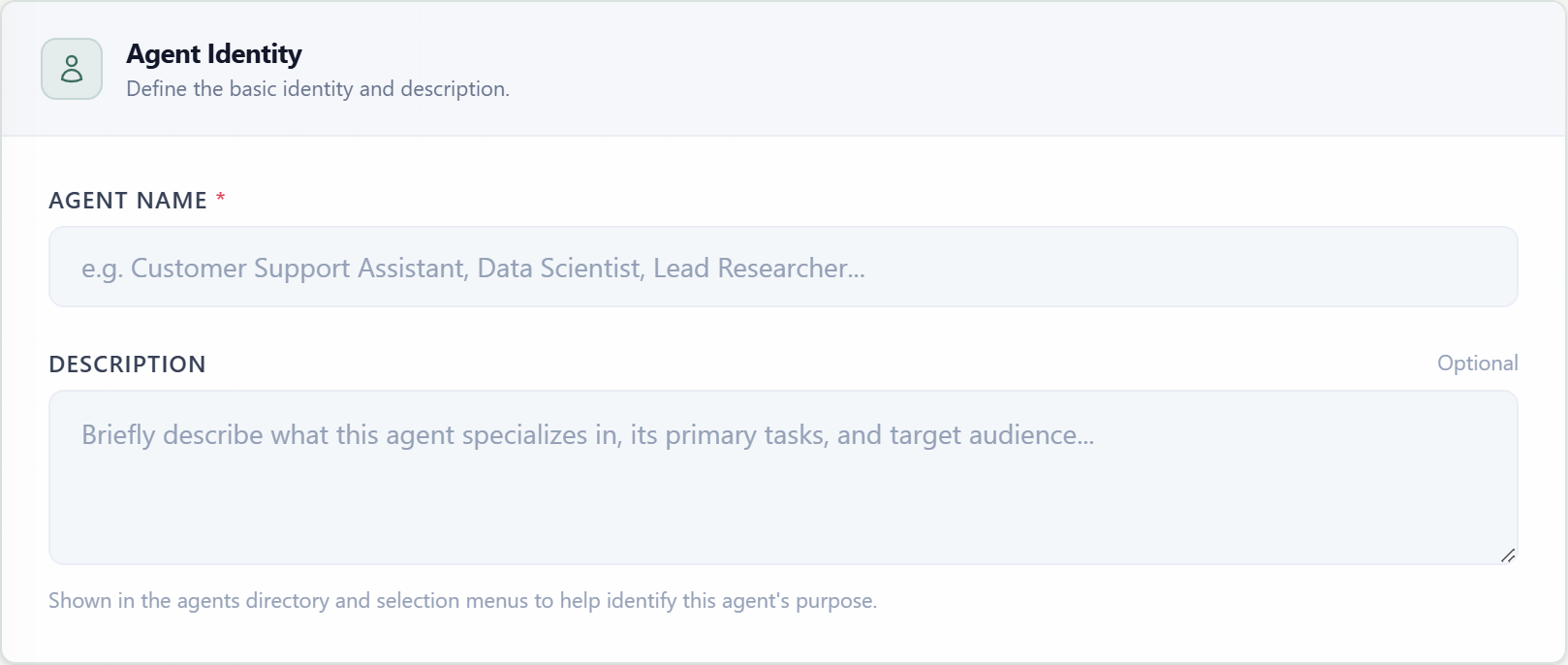
Agent NameRequiredThe display name used in the Agents directory, target selectors, and execution views.
DescriptionOptionalA short summary of the agent specialty, primary tasks, and intended audience.
Section 02
Instructions & Personality
Set the communication style and write the persistent system prompt that governs every run. The live counters in the card track prompt words and characters as you type.
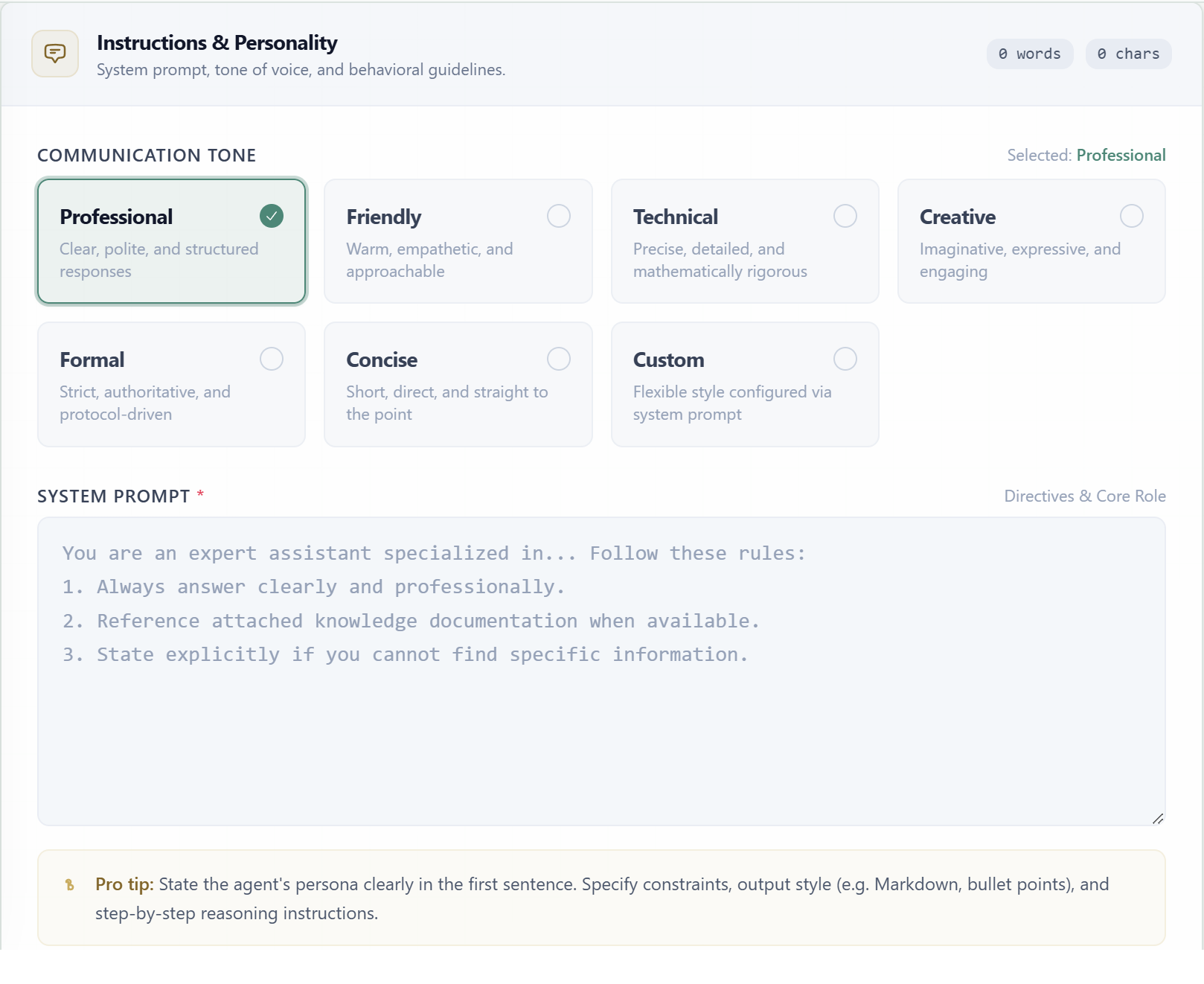
Clear, polite, and structured responses.
Warm, empathetic, and approachable.
Precise, detailed, and mathematically rigorous.
Imaginative, expressive, and engaging.
Strict, authoritative, and protocol-driven.
Short, direct, and straight to the point.
Flexible style configured through the system prompt.
Communication ToneRequiredProvides a reusable style preset for the agent's responses. The default is Professional.
System PromptRequiredDefines the agent's role, goals, constraints, preferred output format, and behavior when information is missing.
Section 03
Knowledge & External Integrations
Ground the agent in indexed documents with one RAG knowledge base and connect any number of remote MCP servers for external tools and operations.
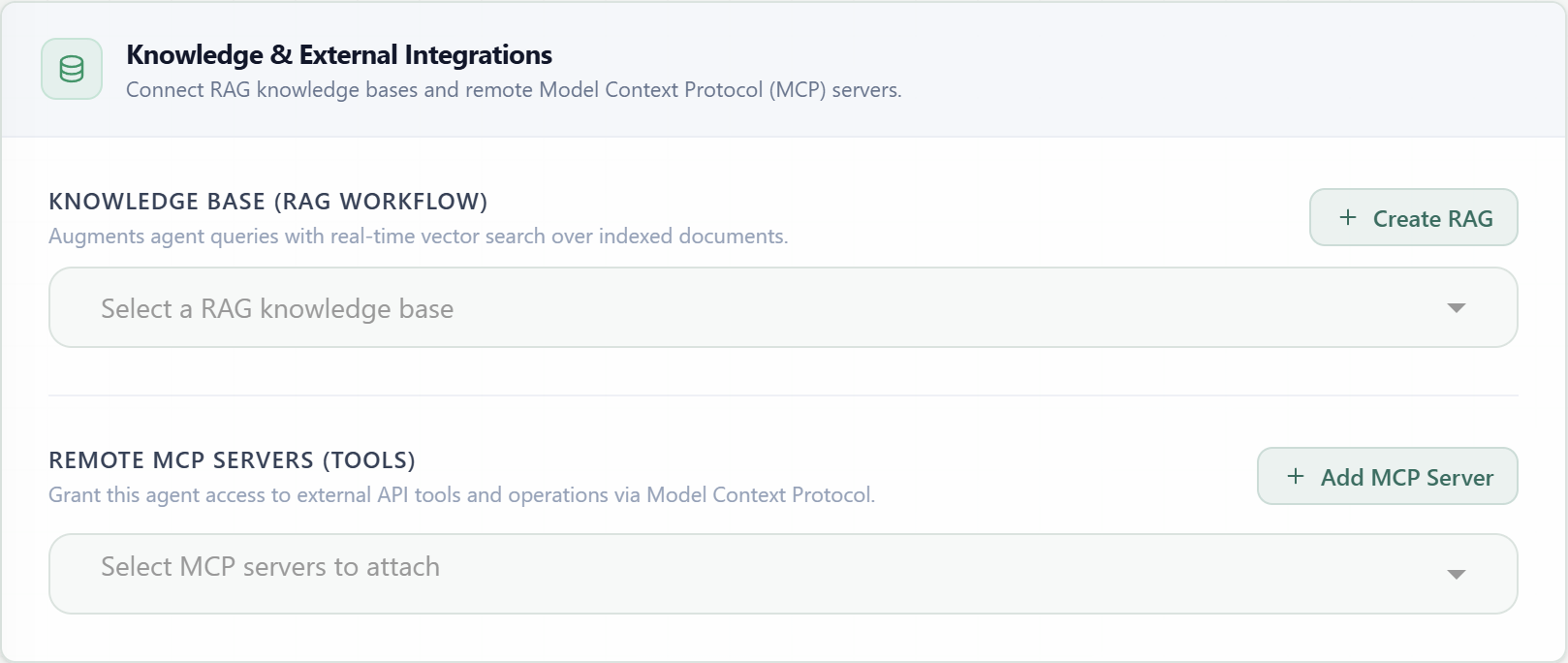
Knowledge BaseOptionalAttaches one RAG workflow that retrieves relevant chunks from indexed documents for each query.
MCP ServersOptionalAttaches one or more remote Model Context Protocol servers that expose external operations.
When an MCP server is attached, all currently discovered tools are enabled initially. Open Configure Tools to keep only the operations this agent should be allowed to call.
Section 04
AI Model & Engine
Select the language model that executes the agent, then tune model-specific reasoning and creativity controls. Available models are grouped by provider in the selector.
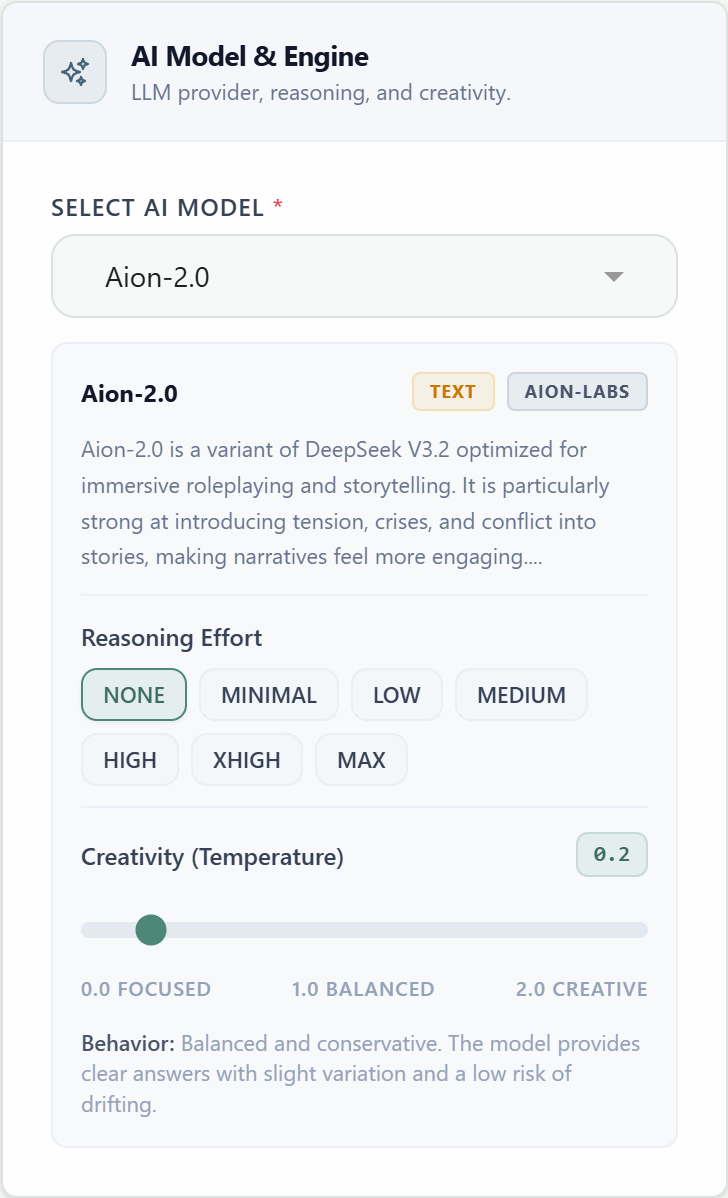
AI ModelRequiredThe provider model used for every agent execution. The selected model card shows its provider and description.
Reasoning IntensityConditionalControls how much explicit reasoning effort a compatible model applies before returning an answer.
TemperatureConditionalControls response variation from 0.0 for focused output to 2.0 for more creative output.
Section 05
Autonomous Capabilities
Grant native platform permissions independently. Both switches are disabled by default and can be enabled only for agents that need live information or sandboxed computation.
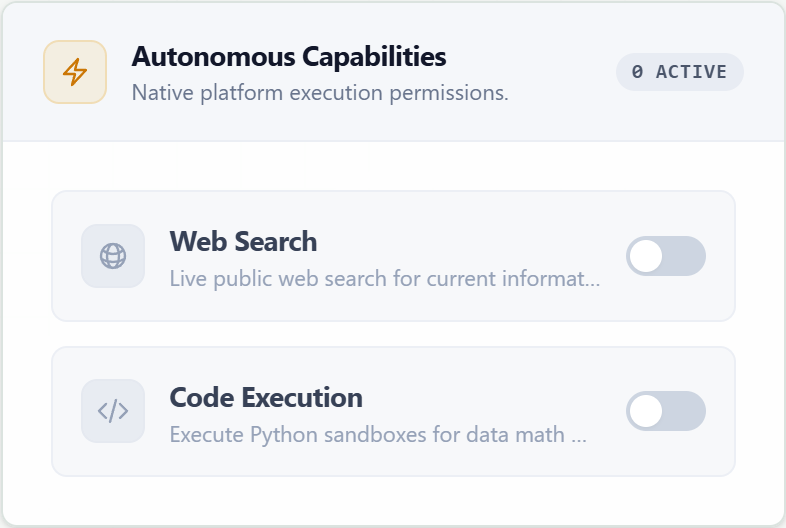
Web Search
Allows the agent to search the public web for current information that is not present in its model or attached knowledge base.
Code Execution
Allows the agent to run Python in a sandbox for calculations, data processing, and programmatic logic.
Complete configuration
Validate and create
The Create Agent action becomes available after all required fields are valid. Missing values are highlighted next to their fields, and the bottom action bar provides the same validation state as the header action.
Required before save
- Agent Name contains a recognizable value.
- System Prompt contains the operating instructions.
- An AI Model is selected.
After creation
The application opens the new agent in edit mode, where its generated ID is shown and every setting can be revised. Test the saved behavior in the Playground before connecting it to production workflows or widgets.